
Getting your POS system up and running shouldn't require an IT technician. With UltraPOS, your store owner or admin sends you one link — and in under five minutes, the app is installed on your device with your store's name and logo already loaded.
Here's exactly how to do it.
What You'll Need
Before you start, make sure you have:
- The setup link sent to you by your store owner or manager
- Your 6-digit setup password (your owner will give this to you)
- A smartphone or tablet (Android or iPhone)
- A working internet connection
That's it. No app store download required.
Step 1: Open Your Store Setup Link
For store owners: The setup link is found in the Admin Panel — select your store and look for the Self-Setup Link card. Tap the copy button and send it to your staff via text, Viber, or any messaging app.
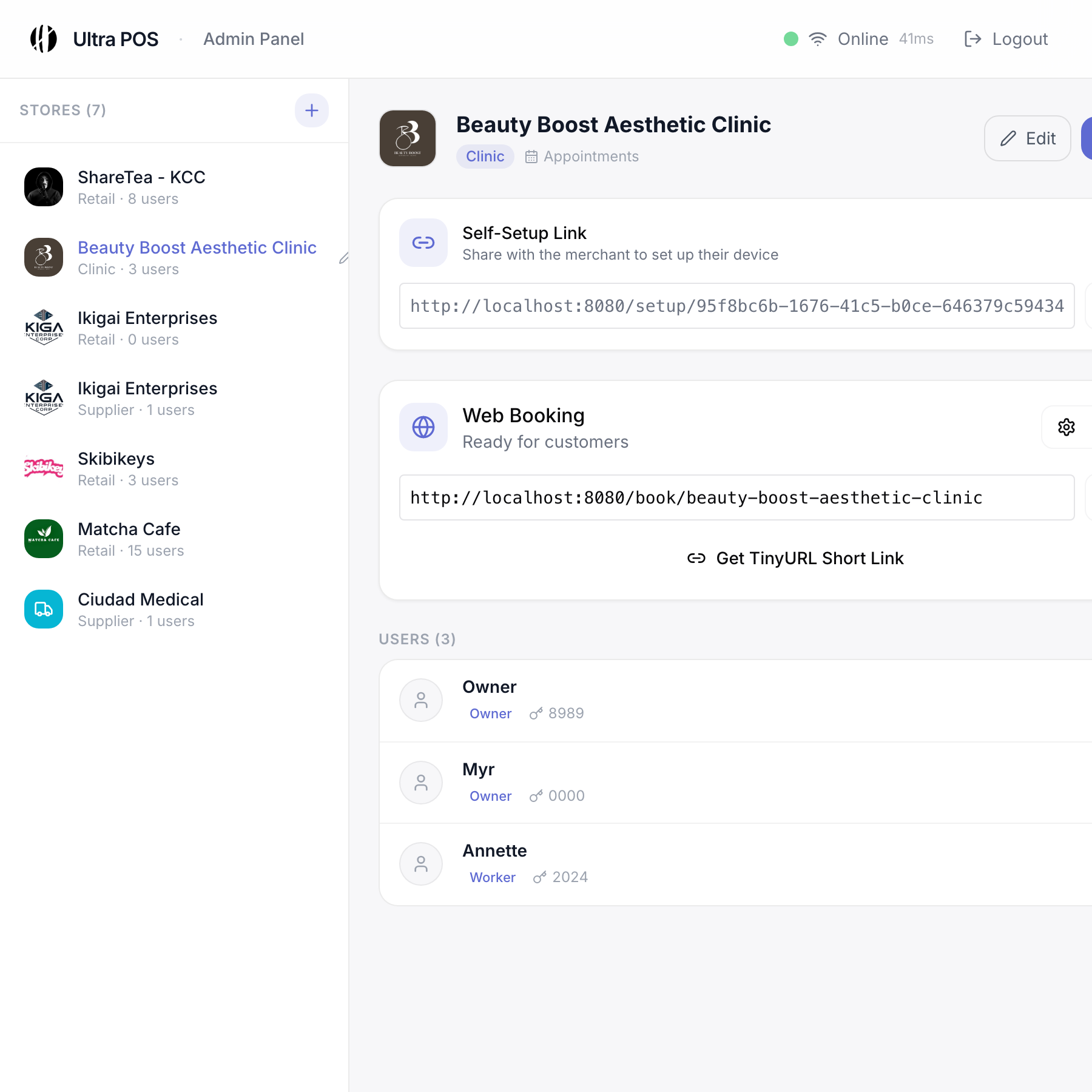
Your store owner or manager will send you a link — it may come via text, Viber, email, or a messaging app. It will look something like:
https://pos.yourstorename.com/setup
Tap the link to open it in your phone's browser. You should see the UltraPOS setup screen with your store's branding.
Tip for Zamboanga City merchants: If the link opens inside your messaging app's built-in browser, tap the three-dot menu and choose "Open in Chrome" (Android) or "Open in Safari" (iPhone) for the best experience.
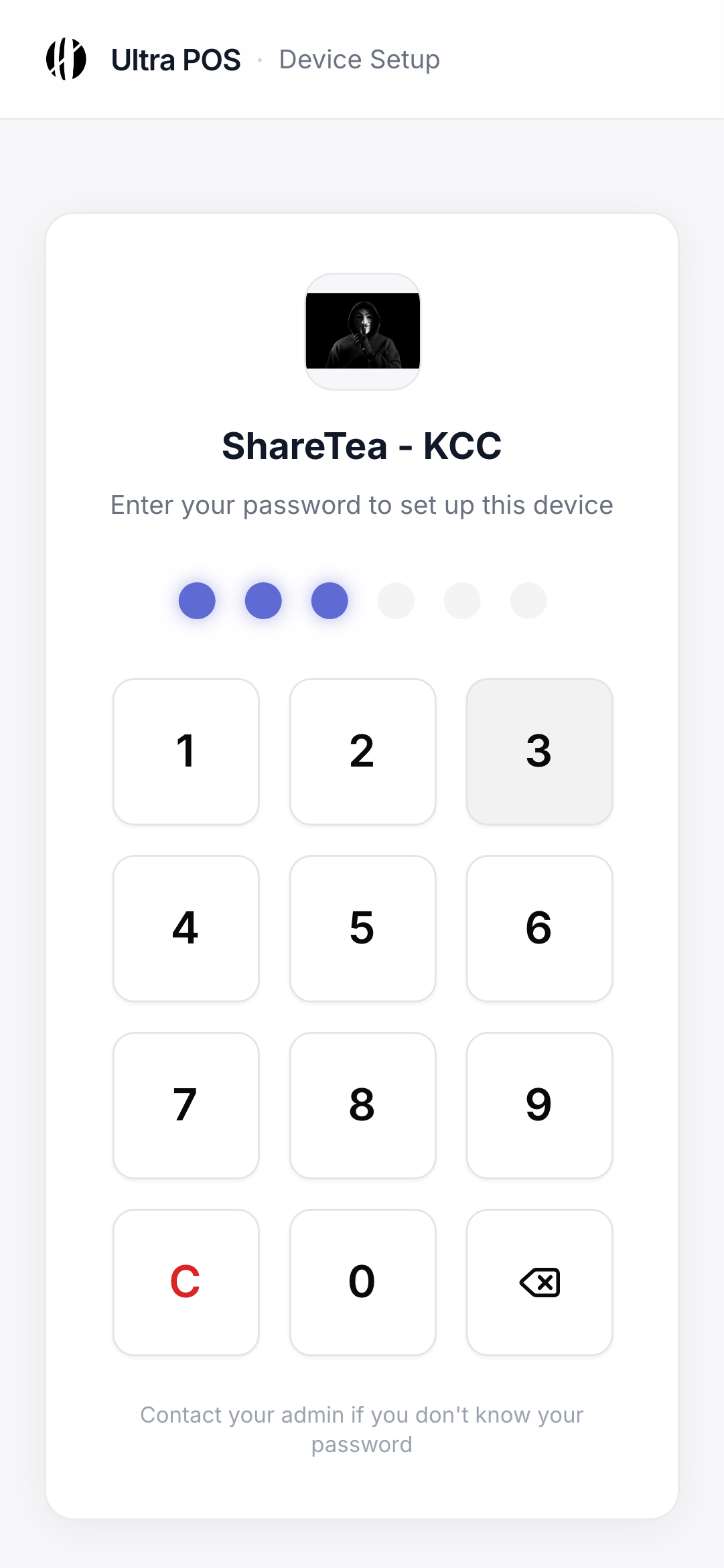
Step 2: Enter Your 6-Digit Password
On the setup screen, you'll see a field asking for your 6-digit setup password.
- Type the 6-digit password your store owner or manager gave you.
- Tap Continue or press the enter key.
If you enter the wrong password, you'll see an error message. Double-check with your owner if you're unsure — this password is unique to your store.
Once the password is accepted, the app will verify your store and load the next step automatically.
Step 3: Install UltraPOS as an App
After your password is confirmed, you'll see a prompt asking you to add UltraPOS to your home screen. This is called a PWA install — it means UltraPOS installs like a regular app but without going through the App Store or Google Play.
On Android:
- A pop-up will appear at the bottom of your screen: "Add UltraPOS to Home Screen."
- Tap Install or Add.
- The app icon will appear on your home screen within a few seconds.
On iPhone (Safari only):
- Tap the Share button at the bottom of the Safari browser (the square with an arrow pointing up).
- Scroll down and tap "Add to Home Screen."
- Tap Add in the top-right corner.
- The UltraPOS icon will appear on your home screen.
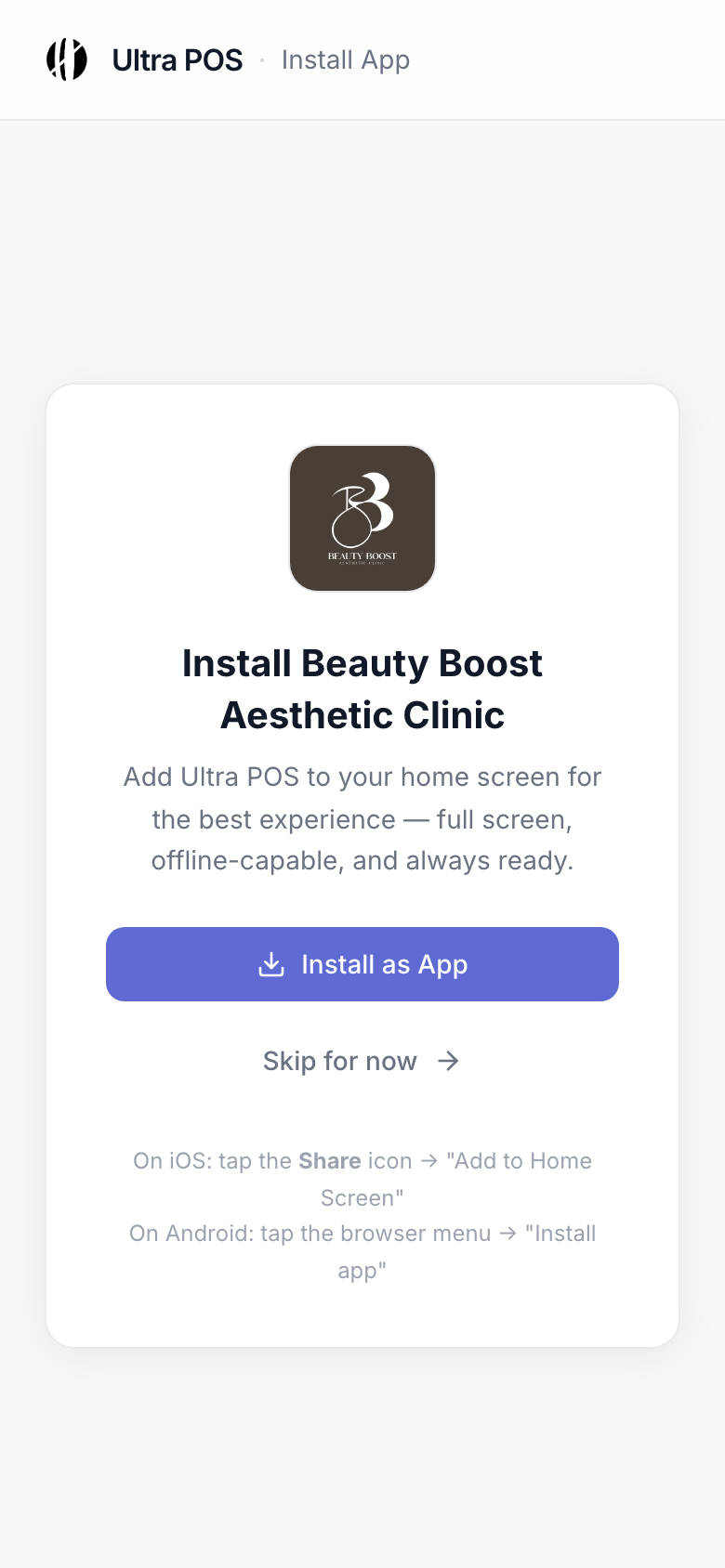
Important: On iPhone, this step only works in Safari. If you're using Chrome on iPhone, switch to Safari and open the setup link again.
Step 4: Confirm Your Store Name and Logo
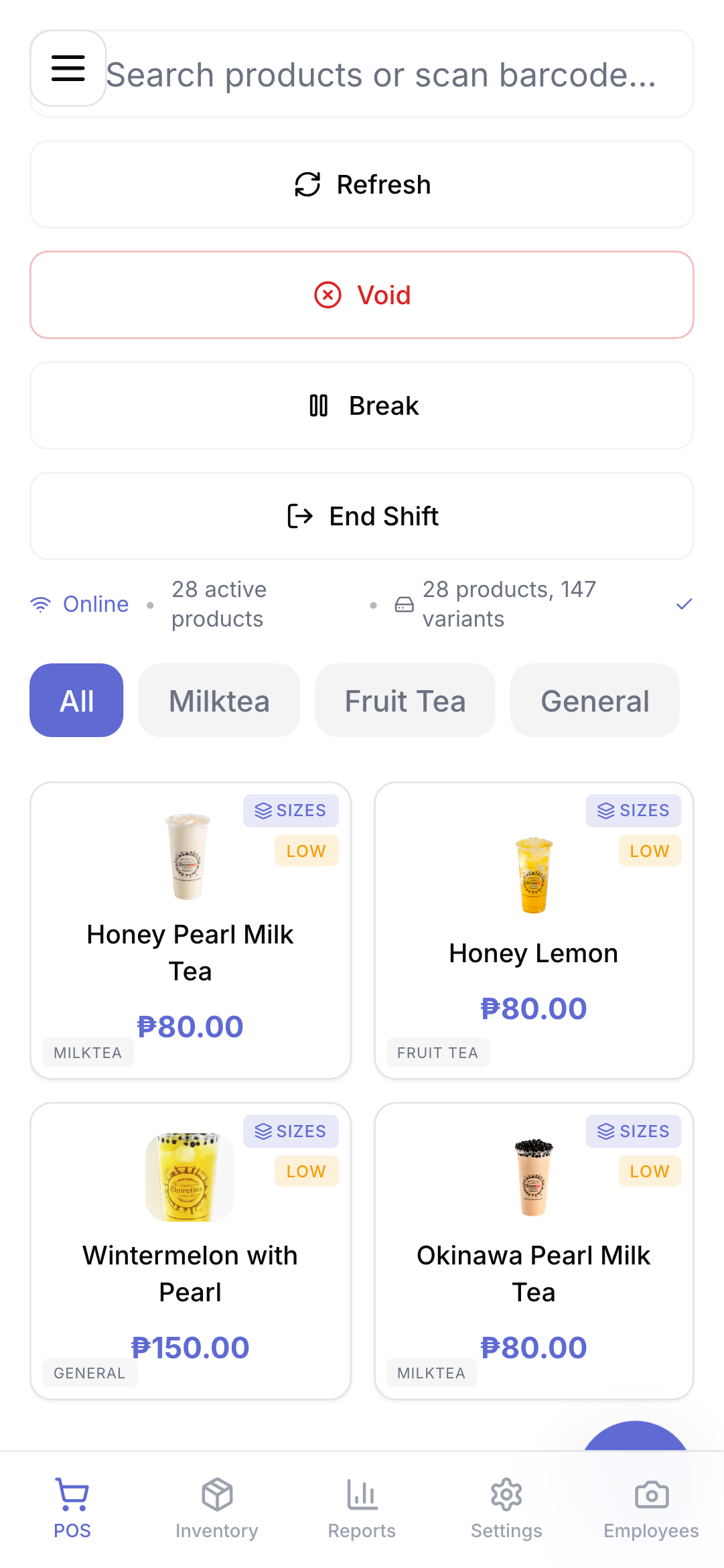
Once installed, tap the UltraPOS icon on your home screen to open the app.
When the app loads, check that:
- Your store name appears correctly at the top
- Your store logo appears on the loading screen or header
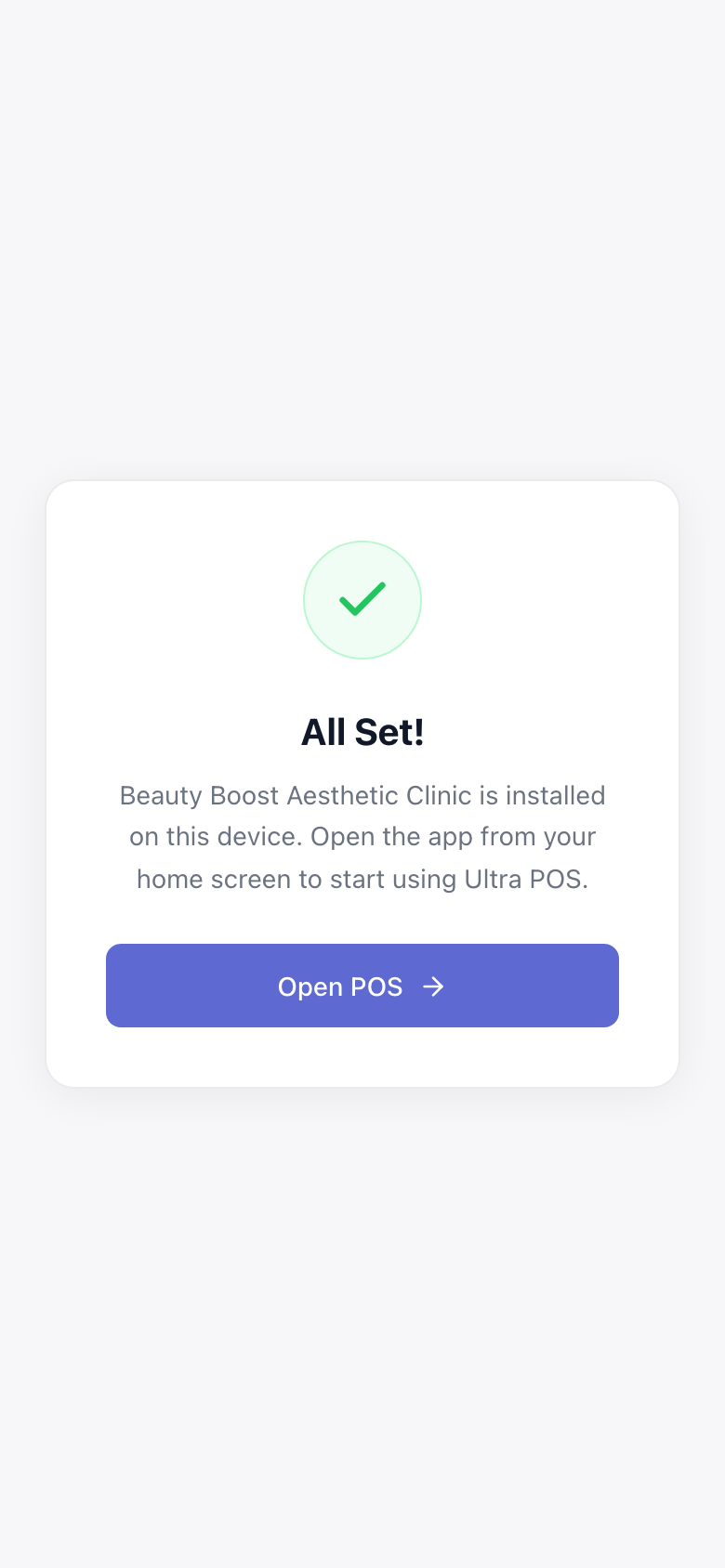
If the name or logo looks wrong, don't panic — contact your store owner. They can correct it from the admin dashboard and you'll see the update the next time you open the app.
If everything looks right, you're almost there.
Step 5: Your First Steps After Installation
Congratulations — UltraPOS is installed and ready to go. Here's what to do next:
1. Test a Sample Transaction
Before you open for the day, run one test transaction to make sure everything is working:
- Open the app and go to the New Order screen
- Add a few items
- Tap Checkout and choose a payment method
- Tap Complete — you'll see a receipt summary
This confirms the app is connected to your store correctly.
2. Log In With Your Assigned Account
Your store owner or manager will give you a staff login (username and PIN or password). This is different from the 6-digit setup password — your staff login is what you'll use every day when starting your shift.
3. Familiarize Yourself With the Layout
Take 5 minutes to tap through the main screens:
- New Order — where you'll process sales
- Order History — to view and reprint past receipts
- End of Day — for your Z-reading at closing time
Your owner or manager can walk you through anything that's unclear.
Troubleshooting Common Issues
| Problem | What to Do | |---|---| | Wrong password error | Check with your store owner for the correct 6-digit code | | "Add to Home Screen" prompt didn't appear on iPhone | Make sure you're using Safari, not Chrome or another browser | | Store name or logo looks incorrect | Contact your store owner to update it from the admin dashboard | | App won't load after install | Check your internet connection and try reopening the app | | Setup link says "expired" or "invalid" | Ask your store owner to generate a fresh link from the dashboard |
Why UltraPOS Self-Setup Works for Zamboanga City Businesses
Most POS systems in the Philippines require a technician visit or a half-day onboarding session. That's a problem when you're running a food stall in Recodo, a boutique along Gov. Lim, or a second branch your family manages across town.
Dee Capital POS was built for exactly this: hands-off setup that your staff can handle themselves, with the correct store branding loaded automatically from the day of installation.
No app store. No installation fees. No technician required.
Ready to Get Started?
If you're a store owner in Zamboanga City looking to onboard your team onto UltraPOS, contact Dee Capital to get your setup link and staff passwords configured. Your team will be processing orders the same day.
Dee Capital is a software studio based in the Philippines. We build custom POS systems and business software for local businesses.